> For the complete documentation index, see [llms.txt](https://digitalgarden.batamladen.com/llms.txt). Markdown versions of documentation pages are available by appending `.md` to page URLs; this page is available as [Markdown](https://digitalgarden.batamladen.com/notes/certificates/cdsa/module-5-understanding-log-sources-and-investigating-with-splunk/introduction-to-splunk.md).
# Introduction to Splunk
## What Is Splunk?
Splunk is a highly scalable, versatile, and robust data analytics software solution known for its ability to ingest, index, analyze, and visualize massive amounts of machine data. Splunk has the capability to drive a wide range of initiatives, encompassing cybersecurity, compliance, data pipelines, IT monitoring, observability, as well as overall IT and business management.
## Architecture
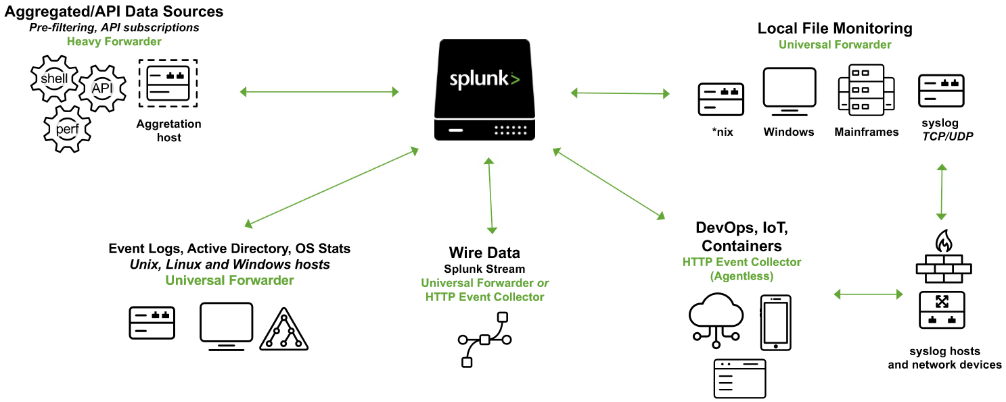
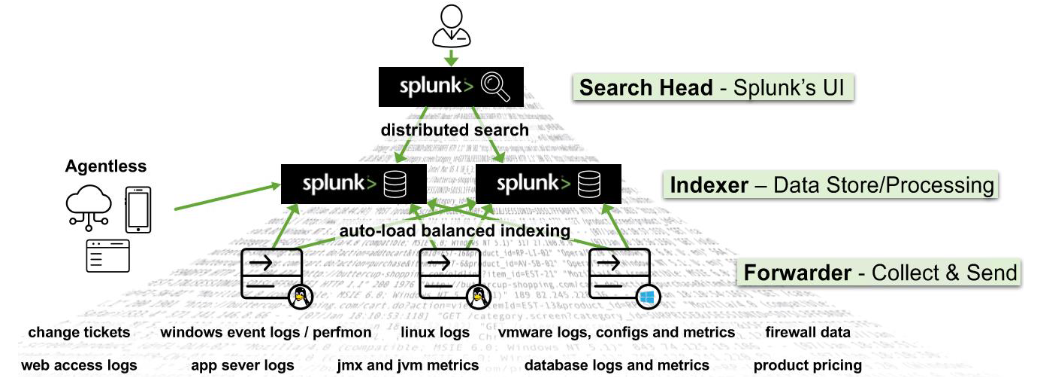
Splunk's (Splunk Enterprise) architecture consists of several layers that work together to collect, index, search, analyze, and visualize data. These are the main components:
* **Forwarders** collect and send machine data to indexers.
* **Universal Forwarder (UF):** A lightweight agent that collects data and forwards it without preprocessing. It has minimal impact on network and host performance.
* **Heavy Forwarder (HF):** Parses and routes data before forwarding. Used for intensive aggregation, filtering, and API/scripted data collection. Can index locally while forwarding to another indexer.
* **HTTP Event Collector (HEC):** Collects data directly from applications via token-based JSON or raw API methods, sending it straight to the indexer.
* **Indexers:** Receive, organize, and store data in indexes. Handle search queries and return results.
* **Search Heads:** Manage search jobs, provide a user interface, and allow creating Knowledge Objects for data manipulation without altering indexes. Support reports, dashboards, and visualizations.
* **Deployment Server:** Manages forwarder configurations and distributes apps/updates.
* **Cluster Master:** Coordinates indexers in a cluster for data replication and search efficiency.
* **License Master:** Manages Splunk licensing.
***
## Splunk key components
* **Splunk Web Interface:** Graphic interface for users to interact with splunk (searching, creating alerts, dashboards, and reports)
* **Search Processing Language (SPL):** The query language for Splunk
* Apps and Add-Ons:
* **Apps:** Provide specific functionalities and support multiple workspaces for different use cases and roles. Found on Splunkbase, they offer pre-configured solutions.
* **Add-ons:** Extend capabilities and integrate with other systems. Technology Add-ons abstract data collection methods and include field extractions, configuration files, and scripts.
* **Knowledge Objects:** Enhance data for easier search and analysis, including fields, tags, event types, lookups, macros, data models, and alerts.
***
## Splunk as a SIEM Solution
#### 1. Basic Searching
Basic search:
```shell-session
search index="main" "UNKNOWN"
```
The search command is not ussually written-out.
Use wildcards:
```shell-session
index="main" "*UNKNOWN*"
```
***
#### 2. **Fields and Comparison Operators**
```shell-session
index="main" EventCode!=1
```
Other booleans used are: `=`, `!=`, `<`, `>`, `<=`, `>=`
***
#### 3. **The fields command**
```shell-session
index="main" sourcetype="WinEventLog:Sysmon" EventCode=1 | fields - User
```
The fields command specifies which fields should be included or excluded in the search results.
***
#### 4. **The table command**
```shell-session
index="main" sourcetype="WinEventLog:Sysmon" EventCode=1 | table _time, host, Image
```
The table command presents search results in a tabular format.
This query returns process creation events, then arranges selected fields (time, host, and Image) in a tabular format. `_time` is the timestamp of the event, `host` is the name of the host where the event occurred, and `Image` is the name of the executable file that represents the process.
***
#### 5. **The rename command**
```shell-session
index="main" sourcetype="WinEventLog:Sysmon" EventCode=1 | rename Image as Process
```
The rename command renames a field in the search results.
This command renames the `Image` field to `Process` in the search results. `Image` field in Sysmon logs represents the name of the executable file for the process. By renaming it, all the subsequent references to `Process` would now refer to what was originally the `Image` field.
***
#### 6. **The dedup command**
```shell-session
index="main" sourcetype="WinEventLog:Sysmon" EventCode=1 | dedup Image
```
The dedup command removes duplicate events.
The dedup command removes duplicate entries based on the `Image` field from the process creation events. This means if the same process (`Image`) is created multiple times, it will appear only once in the results, effectively removing repetition.
***
#### 7. **The sort command**
```shell-session
index="main" sourcetype="WinEventLog:Sysmon" EventCode=1 | sort - _time
```
The sort command sorts the search results.
This command sorts all process creation events in the `main` index in descending order of their timestamps (time), i.e., the most recent events are shown first.
***
#### 8. **The stats command**
```shell-session
index="main" sourcetype="WinEventLog:Sysmon" EventCode=3 | stats count by _time, Image
```
The stats command performs statistical operations.
This query will return a table where each row represents a unique combination of a timestamp (`_time`) and a process (`Image`). The count column indicates the number of network connection events that occurred for that specific process at that specific time.
***
#### 9. **The chart command**
```shell-session
index="main" sourcetype="WinEventLog:Sysmon" EventCode=3 | chart count by _time, Image
```
The chart command creates a data visualization based on statistical operations.
This query will return a table where each row represents a unique timestamp (`_time`) and each column represents a unique process (`Image`). The cell values indicate the number of network connection events that occurred for each process at each specific time.
***
#### 10. **The eval command**
```shell-session
index="main" sourcetype="WinEventLog:Sysmon" EventCode=1 | eval Process_Path=lower(Image)
```
The eval command creates a new field `Process_Path` which contains the lowercase version of the `Image` field.
***
#### 11. **The rex command**
```shell-session
index="main" EventCode=4662 | rex max_match=0 "[^%](?{.*})" | table guid
```
The rex command extracts new fields from existing ones using regular expressions.
* `index="main" EventCode=4662` filters the events to those in the `main` index with the `EventCode` equal to `4662`. This narrows down the search to specific events with the specified EventCode.
* `rex max_match=0 "[^%](?{.*})"` uses the rex command to extract values matching the pattern from the events' fields. The regex pattern `{.*}` looks for substrings that begin with `{` and end with `}`. The `[^%]` part ensures that the match does not begin with a `%` character. The captured value within the curly braces is assigned to the named capture group `guid`.
* `table guid` displays the extracted GUIDs in the output. This command is used to format the results and display only the `guid` field.
* The `max_match=0` option ensures that all occurrences of the pattern are extracted from each event. By default, the rex command only extracts the first occurrence.
***
#### 12. **The lookup command**
```shell-session
index="main" sourcetype="WinEventLog:Sysmon" EventCode=1 | rex field=Image "(?P[^\\\]+)$" | eval filename=lower(filename) | lookup malware_lookup.csv filename OUTPUTNEW is_malware | table filename, is_malware
```
The lookup command enriches the data with external sources.
* `index="main" sourcetype="WinEventLog:Sysmon" EventCode=1`: This is the search criteria. It's looking for Sysmon logs (as identified by the sourcetype) with an EventCode of 1 (which represents process creation events) in the "main" index.
* `| rex field=Image "(?P[^\\\]+)$"`: This command is using the regular expression (regex) to extract a part of the Image field. The Image field in Sysmon EventCode=1 logs typically contains the full file path of the process. This regex is saying: Capture everything after the last backslash (which should be the filename itself) and save it as filename.
* `| eval filename=lower(filename)`: This command is taking the filename that was just extracted and converting it to lowercase. The lower() function is used to ensure the search is case-insensitive.
* `| lookup malware_lookup.csv filename OUTPUTNEW is_malware`: This command is performing a lookup operation using the filename as a key. The lookup table (malware\_lookup.csv) is expected to contain a list of filenames of known malicious executables. If a match is found in the lookup table, the new field is\_malware is added to the event, which indicates whether or not the process is considered malicious based on the lookup table. `<-- filename in this part of the query is the first column title in the CSV`.
* `| table filename, is_malware`: This command is formatting the output to show only the fields filename and is\_malware. If is\_malware is not present in a row, it means that no match was found in the lookup table for that filename.
In summary, this query is extracting the filenames of newly created processes, converting them to lowercase, comparing them against a list of known malicious filenames, and presenting the findings in a table.
```shell-session
index="main" sourcetype="WinEventLog:Sysmon" EventCode=1 | eval filename=mvdedup(split(Image, "\\")) | eval filename=mvindex(filename, -1) | eval filename=lower(filename) | lookup malware_lookup.csv filename OUTPUTNEW is_malware | table filename, is_malware | dedup filename, is_malware
```
* `index="main" sourcetype="WinEventLog:Sysmon" EventCode=1`: This command is the search criteria. It is pulling from the `main` index where the sourcetype is `WinEventLog:Sysmon` and the `EventCode` is `1`. The Sysmon `EventCode` of `1` indicates a process creation event.
* `| eval filename=mvdedup(split(Image, "\\"))`: This command is splitting the `Image` field, which contains the file path, into multiple elements at each backslash and making it a multivalue field. The `mvdedup` function is used to eliminate any duplicates in this multivalue field.
* `| eval filename=mvindex(filename, -1)`: Here, the `mvindex` function is being used to select the last element of the multivalue field generated in the previous step. In the context of a file path, this would typically be the actual file name.
* `| eval filename=lower(filename)`: This command is taking the filename field and converting it into lowercase using the lower function. This is done to ensure the search is not case-sensitive and to standardize the data.
* `| lookup malware_lookup.csv filename OUTPUTNEW is_malware`: This command is performing a lookup operation. The `lookup` command is taking the `filename` field, and checking if it matches any entries in the `malware_lookup.csv` lookup table. If there is a match, it appends a new field, `is_malware`, to the event, indicating whether the process is flagged as malicious.
* `| table filename, is_malware`: The `table` command is used to format the output, in this case showing only the `filename` and `is_malware` fields in a tabular format.
* `| dedup filename, is_malware`: This command eliminates any duplicate events based on the filename and is\_malware fields. In other words, if there are multiple identical entries for the `filename` and `is_malware` fields in the search results, the `dedup` command will retain only the first occurrence and remove all subsequent duplicates.
In summary, this SPL query searches the Sysmon logs for process creation events, extracts the `file name` from the `Image` field, converts it to lowercase, matches it against a list of known malware from the `malware_lookup.csv` file, and then displays the results in a table, removing any duplicates based on the `filename` and `is_malware` fields.
***
#### 13. **The inputlookup command**
```shell-session
| inputlookup malware_lookup.csv
```
The inputlookup command retrieves data from a lookup file without joining it to the search results.
This command retrieves all records from the `malware_lookup.csv` file. The result is not joined with any search results but can be used to verify the content of the lookup file or for subsequent operations like filtering or joining with other datasets.
***
#### 14. **Time Range**
```shell-session
index="main" earliest=-7d EventCode!=1
```
Every event in Splunk has a timestamp. Using the time range picker or the `earliest` and `latest` commands, you can limit searches to specific time periods.
By combining the `index="main"` condition with `earliest=-7d` and `EventCode!=1`, the query will retrieve events from the `main` index that occurred in the last seven days and do not have an `EventCode` value of `1`.
***
#### 15. **The transaction command**
```shell-session
index="main" sourcetype="WinEventLog:Sysmon" (EventCode=1 OR EventCode=3) | transaction Image startswith=eval(EventCode=1) endswith=eval(EventCode=3) maxspan=1m | table Image | dedup Image
```
The transaction command is used in Splunk to group events that share common characteristics into transactions, often used to track sessions or user activities that span across multiple events.
* `index="main" sourcetype="WinEventLog:Sysmon" (EventCode=1 OR EventCode=3)`: This is the search criteria. It's pulling from the `main` index where the sourcetype is `WinEventLog:Sysmon` and the `EventCode` is either `1` or `3`. In Sysmon logs, `EventCode 1` refers to a process creation event, and `EventCode 3` refers to a network connection event.
* `| transaction Image startswith=eval(EventCode=1) endswith=eval(EventCode=3) maxspan=1m`: The transaction command is used here to group events based on the Image field, which represents the executable or script involved in the event. This grouping is subject to the conditions: the transaction starts with an event where `EventCode` is `1` and ends with an event where `EventCode` is `3`. The `maxspan=1m` clause limits the transaction to events occurring within a 1-minute window. The transaction command can link together related events to provide a better understanding of the sequences of activities happening within a system.
* `| table Image`: This command formats the output into a table, displaying only the `Image` field.
* `| dedup Image`: Finally, the `dedup` command removes duplicate entries from the result set. Here, it's eliminating any duplicate `Image` values. The command keeps only the first occurrence and removes subsequent duplicates based on the `Image` field.
In summary, this query aims to identify sequences of activities (process creation followed by a network connection) associated with the same executable or script within a 1-minute window. It presents the results in a table format, ensuring that the listed executables/scripts are unique. The query can be valuable in threat hunting, particularly when looking for indicators of compromise such as rapid sequences of process creation and network connection events initiated by the same executable.
***
16. **Subsearches**
```shell-session
index="main" sourcetype="WinEventLog:Sysmon" EventCode=1 NOT [ search index="main" sourcetype="WinEventLog:Sysmon" EventCode=1 | top limit=100 Image | fields Image ] | table _time, Image, CommandLine, User, ComputerName
```
A subsearch in Splunk is a search that is nested inside another search. It's used to compute a set of results that are then used in the outer search.
* `index="main" sourcetype="WinEventLog:Sysmon" EventCode=1`: The main search that fetches `EventCode=1 (Process Creation)` events.
* `NOT []`: The square brackets contain the subsearch. By placing `NOT` before it, the main search will exclude any results that are returned by the subsearch.
* `search index="main" sourcetype="WinEventLog:Sysmon" EventCode=1 | top limit=100 Image | fields Image`: The subsearch that fetches `EventCode=1 (Process Creation)` events, then uses the `top` command to return the 100 most common `Image` (process) names.
* `table _time, Image, CommandLine, User, Computer`: This presents the final results as a table, displaying the timestamp of the event (`_time`), the process name (`Image`), the command line used to execute the process (`CommandLine`), the user that executed the process (`User`), and the computer on which the event occurred (`ComputerName`).
This query can help to highlight unusual or rare processes, which may be worth investigating for potential malicious activity. Be sure to adjust the limit in the subsearch as necessary to fit your environment.
This is just the tip of the iceberg. More can be learned here:
*
*
*
***
## Identifying Available Data in Splunk
**Key Concepts**
1. **Data Sources in Splunk**: Splunk ingests various data types, classified into *source types* that define how data is formatted.
2. **Fields**: Splunk extracts default fields (e.g., `host`, `source`, `sourcetype`) and additional fields based on the source type.
3. **SPL Commands for Data Identification**:
* `metadata`: Retrieves metadata about sourcetypes, sources, or indexes.
* `fieldsummary`: Lists fields with statistics (count, distinct values, etc.).
* `rare`: Finds uncommon field values or combinations.
* `table`: Displays specified fields in a tabular format.
* `sistats`: Summarizes event distribution by index, sourcetype, etc.
### **Approach 1: Using SPL (Search Processing Language)**
* **List Source Types**:
```
| metadata type=sourcetes index=* | table sourcetype
```
* **List Data Sources**:
```
| metadata type=sources index=* | table source
```
* **View Raw Data for a Sourcetype**:
```
sourcetype="WinEventLog:Security" | table _raw
```
* **List All Fields in a Sourcetype**:
```
sourcetype="WinEventLog:Security" | fieldsummary
```
* **Event Distribution Over Time**:
```
index=* sourcetype=* | bucket _time span=1d | stats count by _time, index, sourcetype
```
### **Approach 2: Using Splunk’s UI**
1. **Data Sources**:
* Go to **Settings > Data Inputs** to see configured data sources (files, HTTP collectors, etc.).
2. **Events Exploration**:
* Use **Fast Mode** for quick scanning or **Verbose Mode** for detailed event inspection.
3. **Fields Identification**:
* In search results, expand an event to see extracted fields.
* Use the **Fields Sidebar** (Selected Fields, Interesting Fields, All Fields).
**Data Models & Pivots**
* **Data Models**:
* Provide structured, hierarchical views of data (e.g., web traffic, security logs).
* Accessed via **Settings > Data Models**.
* Useful for creating reports without complex SPL.
* **Pivots**:
* Interactive tool for building reports/visualizations.
* Accessed via the **Pivot** button in Data Models.
**Best Practices**
* Use time filters to limit search scope when exploring data.
* Avoid `table *` for large datasets (use specific fields instead).
* Follow organizational data governance policies.
These techniques help build effective searches, reports, and dashboards in Splunk. Practice with real data to reinforce learning.
***
## Tasks
#### Task1
Navigate to http\://\[Target IP]:8000, open the "Search & Reporting" application, and find through an SPL search against all data the account name with the highest amount of Kerberos authentication ticket requests. Enter it as your answer.
```spl
index=* sourcetype="WinEventLog:Security" EventCode=4768
| `stats count by Account_Name
| sort - count
| head 1
```
**Explanation:**
🔹 `sourcetype="WinEventLog:Security"` → Searches in Windows Security logs.\
🔹 `EventCode=4768` → Filters for **Kerberos Ticket Granting Ticket (TGT) requests** (these are the authentication requests you're looking for).\
🔹 `stats count by Account_Name` → Counts occurrences of each account requesting a Kerberos ticket.\
🔹 `sort - count` → Sorts by highest number of requests.\
🔹 `head 1` → Returns the account with the highest number of ticket requests.
***
#### Task2
Navigate to http\://\[Target IP]:8000, open the "Search & Reporting" application, and find through an SPL search against all 4624 events the count of distinct computers accessed by the account name SYSTEM. Enter it as your answer.
```spl
index="main" sourcetype="WinEventLog:Security" EventCode=4624
| stats dc(ComputerName) as Distinct_Computer by Account_Name
| sort - Distinct_Computer
```
Explanation\
🔹 `index="main"` - searches only the main index\
🔹 `sourcetype="WinEventLog:Security"` → Searches in Windows Security logs.\
🔹 `EventCode=4624` → This is the code for "Logon Event"\
🔹 `stats dc(ComputerName) as Distinct_Computer by Account_Name` → Creates a table with dc(ComputerName) as Distinct\_Computer and Account\_Name on the other side\
🔹sort - Distinct\_Computer → Sorts the count of Distinct\_Coputer in descending order
***
#### Task 3
Navigate to http\://\[Target IP]:8000, open the "Search & Reporting" application, and find through an SPL search against all 4624 events the account name that made the most login attempts within a span of 10 minutes. Enter it as your answer.
```spl
index=* sourcetype="WinEventLog:Security" EventCode=4624
| stats count as login_attempts, range(_time) as time_range by Account_Name
| where time_range < 600
| sort - login_attempts
```
🔹`EventCode=4624` → This is the code for "Logon Event"\
🔹stats count as login\_attempts, range(time) as time\_range by Account\_Name → make a table with fields: count, range(time) against Account\_Name\
🔹where time\_range < 600 → and set the range(time) within less than 600sec (10min)\
🔹sort - login\_attempts sort most login attempts first
---
# Agent Instructions
This documentation is published with GitBook. GitBook is the documentation platform designed so that both humans and AI agents can read, navigate, and reason over technical content effectively. Learn more at gitbook.com.
## Querying This Documentation
If you need additional information that is not directly available in this page, you can query the documentation dynamically by asking a question.
Perform an HTTP GET request on the current page URL with the `ask` query parameter, and the optional `goal` query parameter:
```
GET https://digitalgarden.batamladen.com/notes/certificates/cdsa/module-5-understanding-log-sources-and-investigating-with-splunk/introduction-to-splunk.md?ask=&goal=
```
`ask` is the immediate question: it should be specific, self-contained, and written in natural language.
`goal` is optional and describes the broader end goal you are ultimately trying to accomplish on behalf of the user. GitBook uses it to tailor the answer towards what is most useful for that goal.
The response will contain a direct answer to the question and relevant excerpts and sources from the documentation.
Use this mechanism when the answer is not explicitly present in the current page, you need clarification or additional context, or you want to retrieve related documentation sections.